

On this page
Prepare and create an entity
Create and verify a Golden entity after its table, schema, and required reusable resources are ready.
Create an entity to connect a business subject and its table to the Golden capabilities required by your scenario.
Before you begin
You need the ADMIN role. Prepare:
- a stable entity identifier and description;
- the table that holds the entity’s records;
- the entity type that matches the required capability; and
- every resource required by that type and data flow.
Use representative test data first. Entity synchronization can start asynchronous work and can deliver results to configured destinations.
Choose the entity type
Use the entity type reference to select storage-only, search, duplicate-resolution, or automatic-stewardship behavior.
Start with the least complex type that satisfies the verified scenario. Adding resolution before the dataset and search behavior are understood makes diagnosis harder.
Create the entity
- Open Entities in the Golden web application.
- Choose Create entity.
- Enter the identifier and a description that states the business subject.
- Select the table and entity type.
- Select the resources required for the chosen capability and data flow.
- Review the configuration and save the entity.
An entity is initially EMPTY. That means the configuration exists, but the
first data-processing cycle has not completed.
Inspect the entity map
An entity’s own page opens on a Summary that draws what comes in, what Golden does with it, and what leaves — with every element linking to its configuration. Use its links to check whether a resource participates in the flow before changing it.
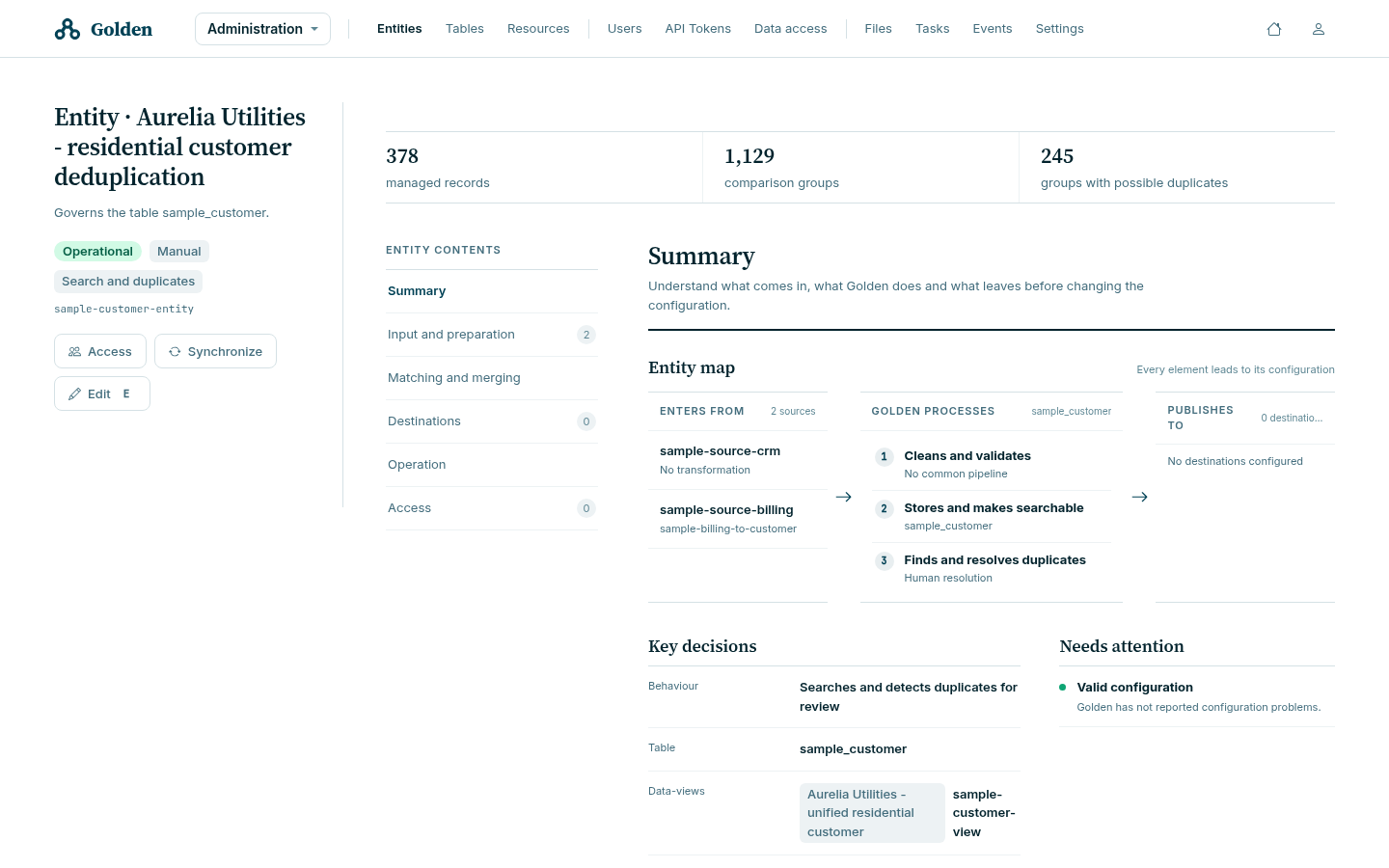
The summary reports these counts:
| Figure | Meaning |
|---|---|
| Managed records | Records in the entity’s table |
| Comparison groups | Every bucket the indexer produced |
| Groups with possible duplicates | The subset holding more than one record |
Comparison groups and groups with possible duplicates are different counts. In the sample they read 1,129 and 245: most comparison groups hold a single record and mean nothing is duplicated on that key.
The left-hand contents list carries counts of its own — Input and preparation 2, Destinations 0 — so an entity with nothing wired to a section says so before you open it.
Verify the configuration
- Reopen the entity and confirm its table, type, and resource references.
- Confirm that validation reports no unresolved dependency or configuration error.
- Run synchronization with controlled data.
- Follow the resulting task while the entity is
WORKING. - Confirm the task completes and the entity becomes
READY. - For searchable entities, perform a known-record search. For resolution entities, inspect the candidate results before enabling a broader flow.
Recover or revise
If validation fails, do not repeatedly synchronize the entity. Disable it when
necessary, correct the referenced configuration, and validate again. A changed
configuration can make an entity INCONSISTENT; reconcile it through the
supported synchronization workflow before treating it as ready.
If the wrong records reached a destination, stop the affected data flow and follow the approved customer recovery and support process.