

On this page
Access and navigate Golden
Sign in, check your access, and find the entity workspace and administration screens.
Access your environment
Use the customer-specific Golden URL and authentication method supplied during onboarding. An administrator must provision the Golden user and role before the first sign-in; signing in through SSO does not provision access automatically.
Sign in
- Open the assigned Golden URL in a supported browser.
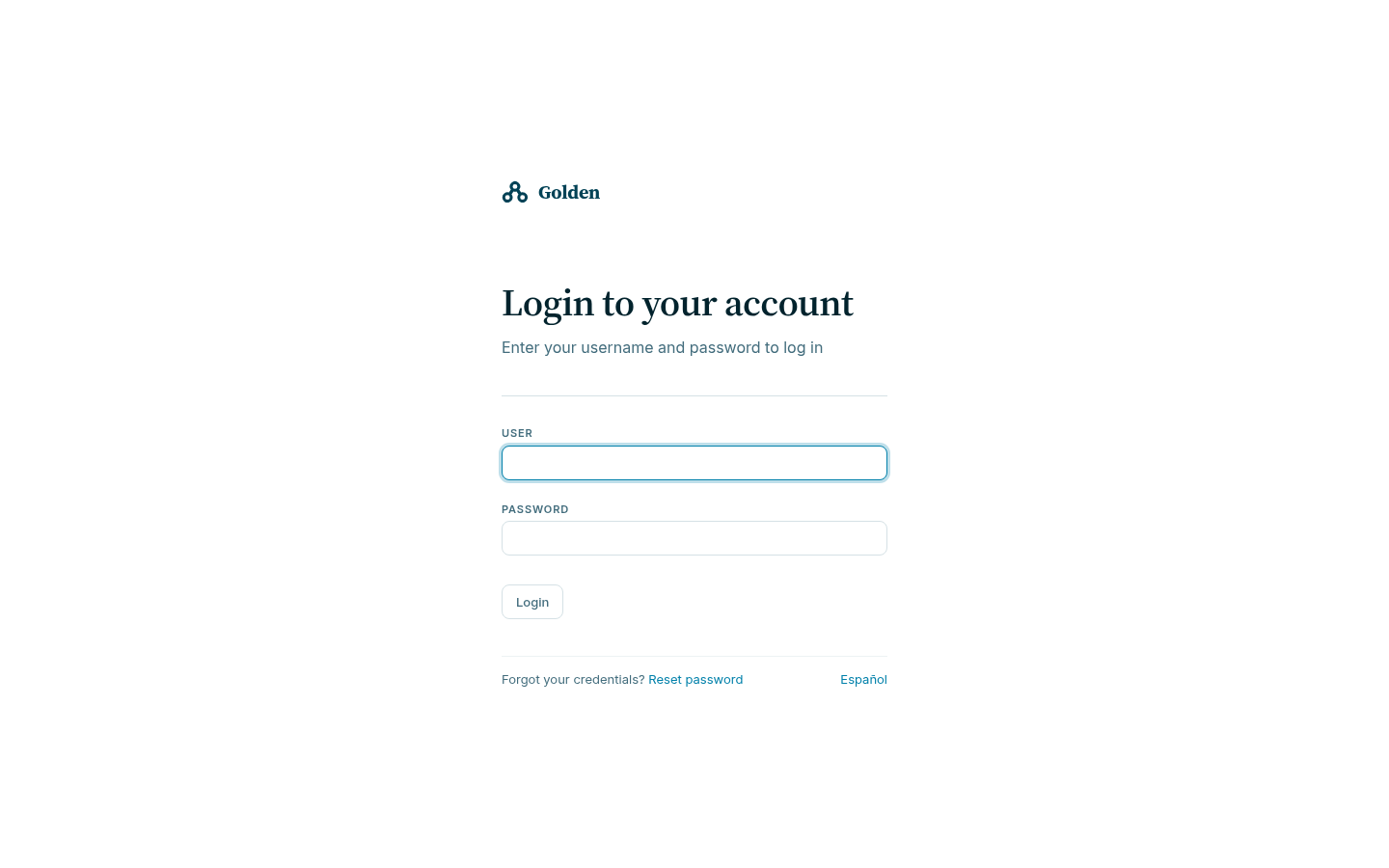
- On the sign-in page, enter User and Password when the environment uses Golden-managed passwords.
- Select Sign in.
If SSO is enabled, the page also displays one or more provider buttons. Select the provider approved for this environment and complete its sign-in flow. Do not enter a Golden-managed password unless your onboarding handoff says the account is internal.
Understand the landing page
Signing in opens Home. Administrators see Golden today, with data and operations summaries. Stewards see Where to start, and viewers see Find the data you need. Each role gets an entry point to its permitted work.
From here, select the entity’s name in the top navigation to reach its Quality, Records, and Duplicates sections, or Administration for configuration and access if you are an administrator. The navigation sections below explain these areas.
Verify your identity and role
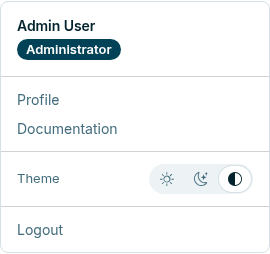
- Open the user menu at the upper right.
- Confirm the displayed name and role match the onboarding handoff.
- Confirm the browser address begins with the assigned Golden base URL.
- If the identity, role, or URL is wrong, select Logout and contact the administrator before viewing or changing customer data.
The user menu contains Profile, Documentation, theme choices, and Logout. Open Profile > Granted access to inspect the entities and rows your account can see. An ungranted entity is invisible rather than shown empty. See Roles and data access.
Reset a Golden-managed password
- On the sign-in page, follow Reset password after the “Forgot your credentials?” prompt.
- Enter the email address of the provisioned internal user.
- Submit the request and follow the link delivered through the configured recovery channel.
- Choose a new password that satisfies the policy shown by the environment.
- Return to the sign-in page and verify access.
Password reset is for Golden-managed internal users. If an SSO provider owns the credential, use that provider’s recovery process.
Update your profile or password
After signing in, open the user menu and select Profile. An internal user can update their own profile and password there. A user cannot grant themselves a role; role changes require an administrator.
Sign out
Open the user menu and select Logout. Golden revokes the user’s refresh tokens across devices, preventing those sessions from renewing access. An already-issued session JWT remains valid until it expires. Close shared-browser windows after sign-out. See API session handling.
Resolve access failures
| Symptom | Action |
|---|---|
| Invalid credentials | Re-enter the provisioned user and password or use the approved SSO provider |
| Session expired | Sign in again; do not repeatedly submit an interrupted write without checking its outcome |
| Account locked | Ask an administrator to Unlock the user or initiate password reset |
| Correct identity but missing action | Verify the role; the action may require STEWARD or ADMIN |
| SSO succeeds but Golden denies access | Ask an administrator to confirm the Golden user and matching email are provisioned |
| Wrong environment | Log out and use the URL supplied in the activation handoff |
Developers and unattended callers should use API authentication and access tokens rather than automating the browser sign-in flow.
Navigate the application
Golden organizes the interface around the entity you are working on. The top navigation combines an entity selector with the sections available inside that entity. Available controls depend on the signed-in role and on how the entity is configured.
The examples on this page use the Aurelia Utilities sample project, a fictional residential energy retailer whose customer master arrives from a CRM and a billing platform. See Explore the Aurelia Utilities sample.
Top navigation
| Item | Purpose | Visible to |
|---|---|---|
| Home | Role-specific entry point to permitted data and work | All signed-in roles |
| The entity’s name | Opens that entity’s workspace. When more than one entity exists, this item is a selector | VIEWER, STEWARD, ADMIN |
| Administration | Entities, tables, resources, access, files, tasks, and events | ADMIN |
Selecting the Golden logo returns to Home.
The entity item carries the entity’s description, not its identifier. In the
sample that reads Aurelia Utilities - residential customer deduplication,
while the identifier used by the API is sample-customer-entity. Two Golden
environments can therefore present the same workflow under entirely different
labels.
What the landing page reports
On the administrator home, the data pane counts governed records, records with issues, and records with a possible duplicate. The operations pane counts tasks running, failures in the last 24 hours, stalled queues, and refused events.
These two panes are administrator summaries. Stewards and viewers have their own home layouts focused on their granted entities. A zero in the operations pane means nothing is currently stuck; it is not evidence that every past task succeeded. Use Tasks and schedules for that.
The entity workspace
Selecting an entity makes its workspace sections available beside the selector:
| Section | What it answers | Requires |
|---|---|---|
| Quality | Saved quality pictures, daily trends, and the most frequent findings | A table with quality measurement enabled |
| Records | Which records are there, and what does one of them look like | Always present |
| Duplicates | Which records might be the same thing | An entity of type DUPLICATES or AUTO_DUPLICATES |
A section that the entity’s configuration does not support is not shown. An
entity of type SEARCH has no Duplicates section, because nothing is
classifying its records into candidate groups.
Administration navigation
Administration is available only to ADMIN. It includes the entity and
table catalogs, resources, users, API tokens, data access, files, tasks,
events, and settings. Administrators use these pages to configure Golden and
manage executions and access.
Viewing records through a granted entity is separate from opening these
administrative catalogs. VIEWER and STEWARD can use the permitted entity
workspace without access to Administration. See the
operation permissions.
Keyboard shortcuts
Golden prints the shortcut inside the control it triggers. A button labeled
Edit followed by a boxed E responds to E; Back to records followed
by Esc responds to Esc. The hints are optional, not a separate command
layer, and every one of them has a control you can select instead.
Common hints include N for a new record, E for edit, S for sort, I for
the index filter, C for the classification filter, and Esc for the action
that leaves the current screen.
Use Esc to close or cancel only after checking whether a confirmation dialog
or an edit form owns the current interaction.
User menu
Open the control at the upper right to see:
- signed-in name, with the role as a filled pill beneath it;
- Profile;
- Documentation, which opens this site;
- Light, Dark, and System theme choices; and
- Logout.
The shell does not show a separate customer environment label. The assigned base URL remains the authoritative environment check.
Page controls
Most pages place their actions near the page title, to the right. A page that acts on a selection keeps those actions visible but disabled until something is selected — in the expert duplicates list, Merge, Disconnect, Ignore bucket, Delete clashes, and Delete bucket all behave this way.
Page titles carry their own figures. The Records sidebar has a
Vigency selector for current records or retained history. The duplicates
workspace gives STEWARD and VIEWER the Simple queue. ADMIN can also
use Expert mode for filtered lists and bulk actions.
Messages and completion
Golden displays success and error messages as temporary notifications. A success notification confirms that the web operation was accepted, not that every asynchronous task behind it has finished.
When an action starts background work — a synchronization, a load, a sample
installation — follow the task to a terminal state before concluding it worked.
A STEWARD does not have access to Tasks; use the agreed administrator
handoff instead of re-running the action.