

On this page
Find and maintain records
Search a Golden entity, filter records by quality, and interpret record data, quality scores, audit timeline, and metadata.
Use Records to browse and maintain an entity’s data. A VIEWER can
browse, filter, search, and inspect. Creating, editing, and deleting a record
require an editable table and the applicable STEWARD or ADMIN permission.
The examples use the Aurelia Utilities sample project. Its customer master holds 378 records loaded from two systems: a CRM that captured tax identifiers and phone numbers, and a billing platform that often did not. See Explore the Aurelia Utilities sample.
Browse the record list
- Select the entity in the top navigation.
- Select Records beside the entity selector.
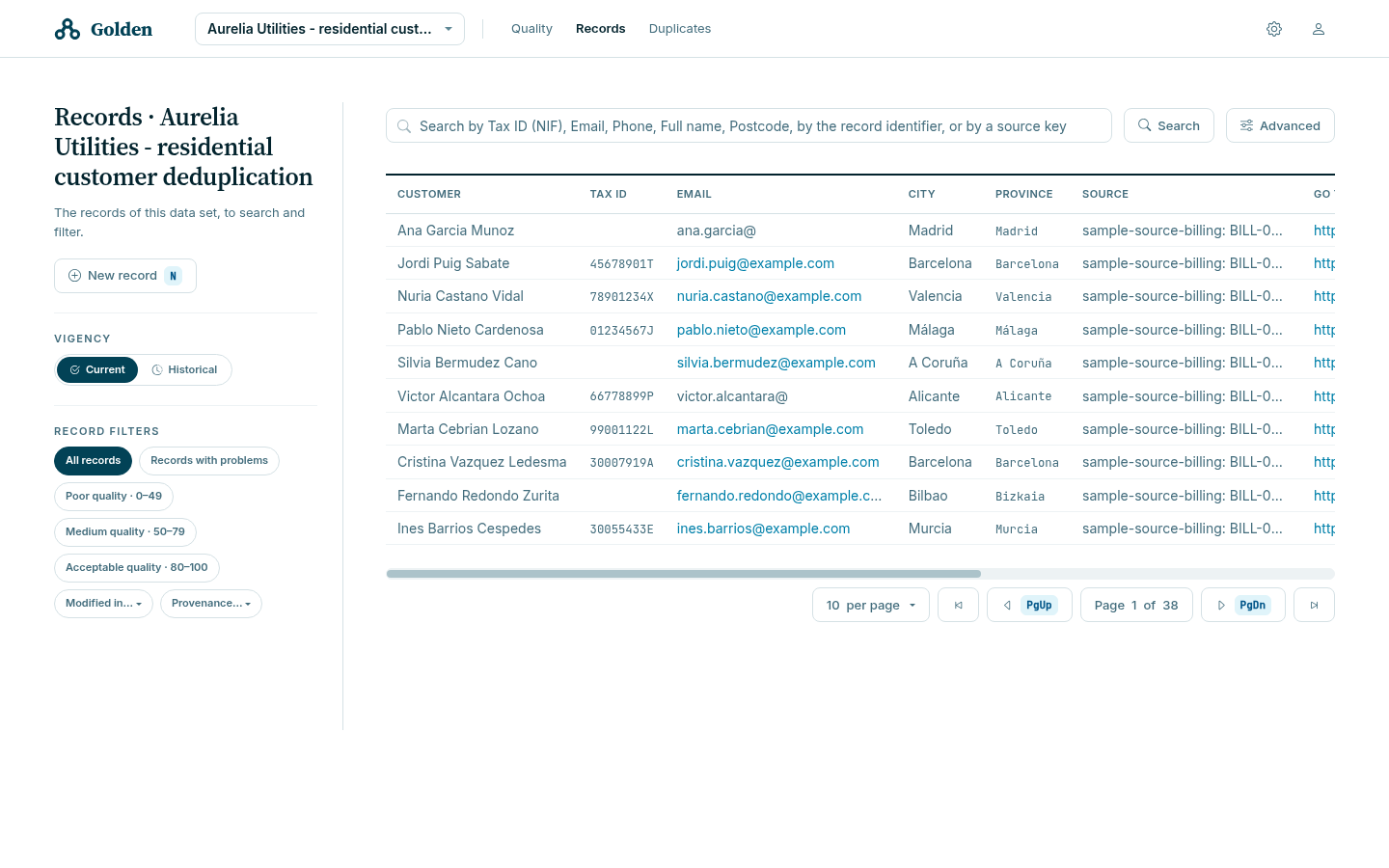
- Check the Vigency selector in the sidebar. Current identifies the live table; Historical identifies retained history.
- Page through the list. Select the record title to open a record; the complete identifier is on the record page.
The columns, the record title, and the field labels come from the table’s
data view. In the sample, the view is what turns taxId into Tax ID
(NIF) and supplyPoint into Supply point (CUPS). Two Golden environments
can present the same workflow with entirely different business labels.
Filter by quality
The pills in the sidebar are facets. Each one is a reversible selection, each keeps whatever search is currently applied, and each returns you to the first page.
| Pill | Selects |
|---|---|
| All records | The explicit reset. Clears every other pill |
| Records with problems | Records carrying a quality error |
| Poor quality · 0–49 | Records whose score falls in that band |
| Medium quality · 50–79 | Records whose score falls in that band |
| Acceptable quality · 80–100 | Records whose score falls in that band |
| Modified in… | Last 24 hours, yesterday, the last 15 days, or the last month |
| Provenance… | Records from the selected source |
The three quality bands are mutually exclusive, because the criteria are combined with AND and no record scores in two bands at once. A band and Modified in… can be active together.
In the initial sample, Records with problems includes 17 billing records with an incomplete email. Inspect each record’s current explanation rather than expecting an old sample score.
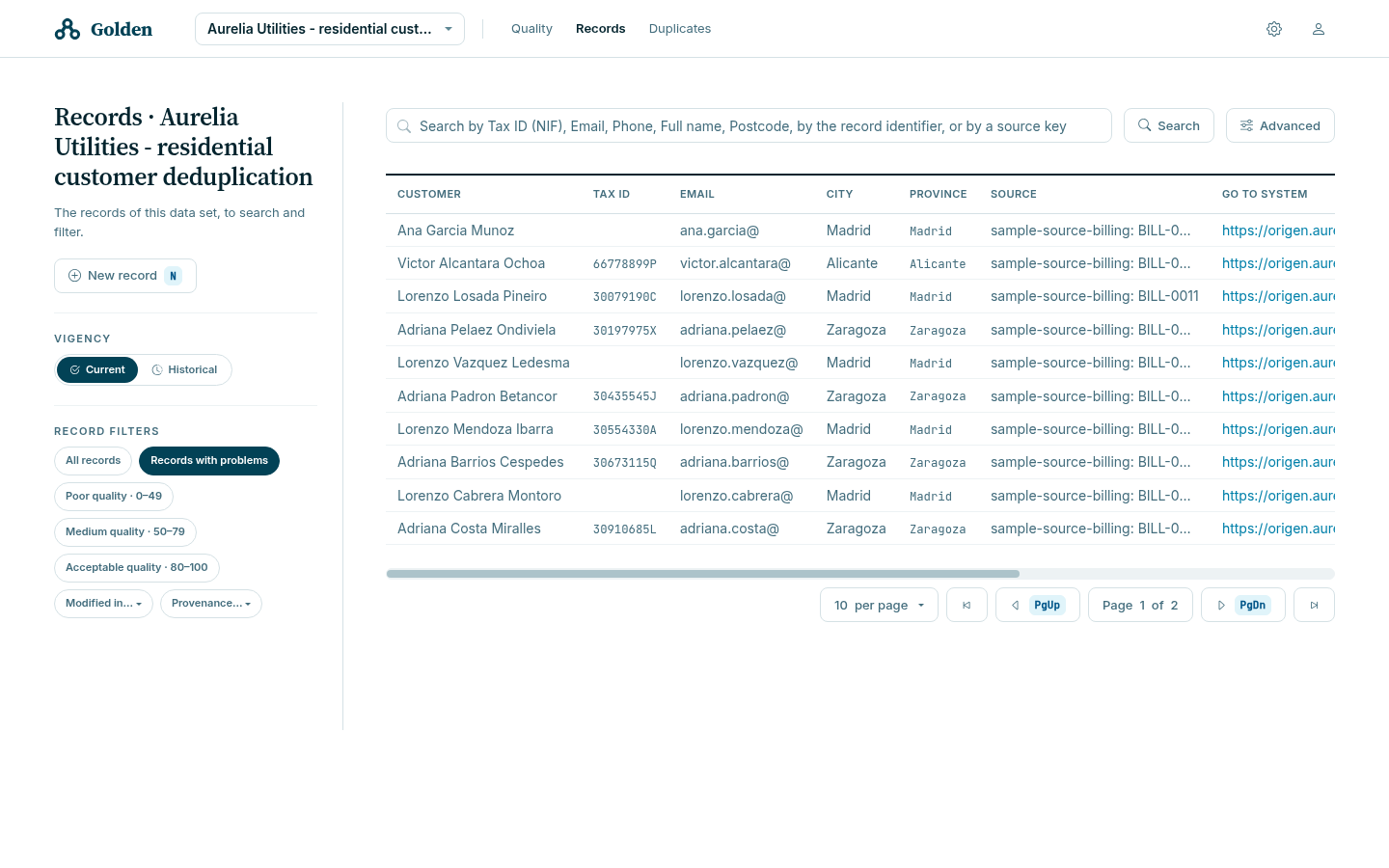
Clear the filter before concluding that a record is absent from the table.
Search records
Search is available when the table participates in a searchable entity. When it is not, Golden says so: “No entity is configured for this table, so nothing has been indexed and it cannot be searched. The list and its filters still work.”
Simple search
The search bar accepts one line of text and names the fields it can reach. In the sample the placeholder reads Search by Tax ID (NIF), Email, Phone, Full name, Postcode — that list is generated from the entity’s indexer, not configured separately.
Whitespace separates terms and double quotes hold a phrase together. Every term is probed against every searchable field and against the record identifier, and a record matching more of the terms ranks higher.
Searching the sample for Ana Garcia Munoz returns three records:
| Source | Reference | Full name | Tax ID | |
|---|---|---|---|---|
| CRM | CRM-0001 | Ana García Muñoz | 12345678Z | ana.garcia@example.com |
| CRM | CRM-DUP-0001 | ANA Garcaí Muñoz | 12345678Z | Ana.Garcia@Example.com |
| BILLING | BILL-0001 | Ana Garcia Munoz | (empty) | ana.garcia@ |
Searching for 12345678Z returns only the first two. The billing record has no
tax identifier, no phone, and an email that lost its domain, so three of the
four strong signals are gone — and free text is the only simple search that
still reaches it.
Two behaviors are worth knowing before you conclude a record is missing:
- Short terms are treated differently. Under a configured minimum length, Golden searches only the identifier and an exact value, not fragments of one.
- A result can be partial. When the search stops at its limit, Golden says so and a longer or more precise term narrows it.
Advanced search
Select Advanced to search field by field. The form offers one input per searchable field, and each field carries its own controls:
| Control | Behavior |
|---|---|
| Exact / Similar switch | The mode for that field alone. Off means exact; on means approximate |
| always approximate | Shown instead of the switch on a field that cannot be matched exactly |
| Radius in meters | Shown on a geographic field, in place of a matching mode |
| Combine | All fields requires every filled field to match; Any field requires one |
| Limit | Caps the number of results |
The advanced form defaults to All fields; the API defaults to ANY.
Set the combination explicitly in an integration. See
Search records through the API.
Select Simple search to return to the single search bar.
An empty result means the submitted criteria found no record under those options. It does not prove that the subject is absent under every identifier, spelling, source, or eventual indexing state.
Inspect a record
The record page opens on four tabs. The badge on a tab is a count, not a status: Quality 2 means two findings, Audit 1 means one audit entry.
| Tab | What it holds |
|---|---|
| Data | The business form, laid out by the table’s data view |
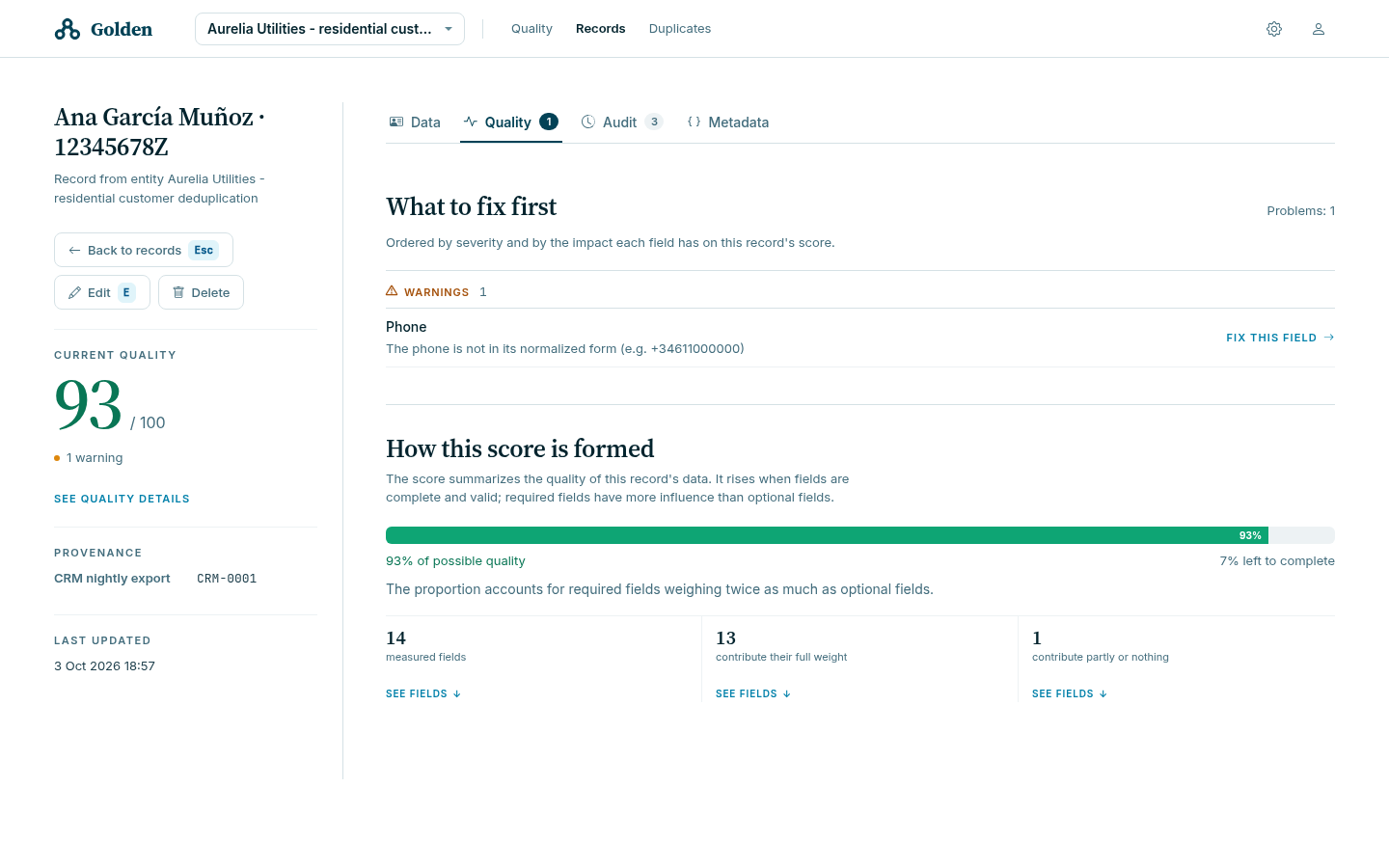
| Quality | The score, what to fix first, and how the score was formed |
| Audit | The timeline of who changed what and when, where auditing is enabled |
| Metadata | Every technical key stored with the record, shown without interpretation |
The page title is the record as a person would name it — in the sample, the customer’s name and tax identifier — followed by the entity it belongs to, the quality score, and the problem count.
Read a quality score
The score summarizes one record’s data. It rises when fields are complete and valid, and required fields weigh twice as much as optional fields.
The score follows these rules:
- An error caps the score at 99.
- If any points are earned, rounding does not reduce the score to zero.
- Warnings can reduce field contributions, but rounding can still produce 100.
- A stored score can be stale when the quality definition changes. Check the current explanation before relying on it.
Two states are not scores. Not measured means the record has never been measured against a quality definition. Out of date means it was measured under a definition the table is no longer on, and needs remeasurement.
A record whose fields are none of them measurable reports no score. That is not a score of zero, and Golden says so rather than printing one.
Edit a record
Only change a record when the table is editable and policy permits Golden to own or correct the value.
- Record the current identifier and the relevant values.
- Select Edit, or press
E. - Change only approved fields.
- Select Check to ask the server what is wrong with the values without saving them. Golden answers either “Nothing to report” or a count of the problems it found.
- Select Save and add a concise decision comment when prompted.
- Reopen the record and verify the values, the quality tab, and the audit timeline.
Blocking validation problems appear near the fields. Quality warnings are separate and can allow the save to continue. Leaving with unsaved changes triggers a warning; choose to keep editing unless discarding them is intentional.
Delete a record
Delete removes data and requires explicit confirmation. Prefer correction, disablement, or the approved master-data recovery path when deletion is not the business intent.
What Golden tells you afterwards depends on the table:
- On a table that keeps history: “The record was deleted. Its last version is kept in the history table.”
- On a table that does not: “The record was deleted. This table keeps no history, so the record is gone for good.”
Read which of the two you received. In the sample, sample_customer keeps
history and the three catalog tables do not.
Before confirming, verify the table, the full record identifier, downstream impact, history or audit availability, and the authorized retention policy.