

On this page
L2 asset detail
Use L2 search, type filters, header metrics, the asset spotlight, dossier, related assets, and source panel to examine specific behavior.
Detail L2 connects a system-level finding to an individual asset. It contains an asset index and, after selection, a header, a type-specific Spotlight, a dossier, and a source panel.
You need an analyzed project. Open Understand → Detail L2, or follow an available member link from Landscape. Begin with a specific question, such as which expression produces a field or which programs call a shared routine.
Screenshots show the reference demo unless marked as an illustrative example. Identifying organization names and paths have been anonymized in browser captures; measurements and analysis gaps are retained. Values depend on the analyzed project. Select an image to view it at full size.
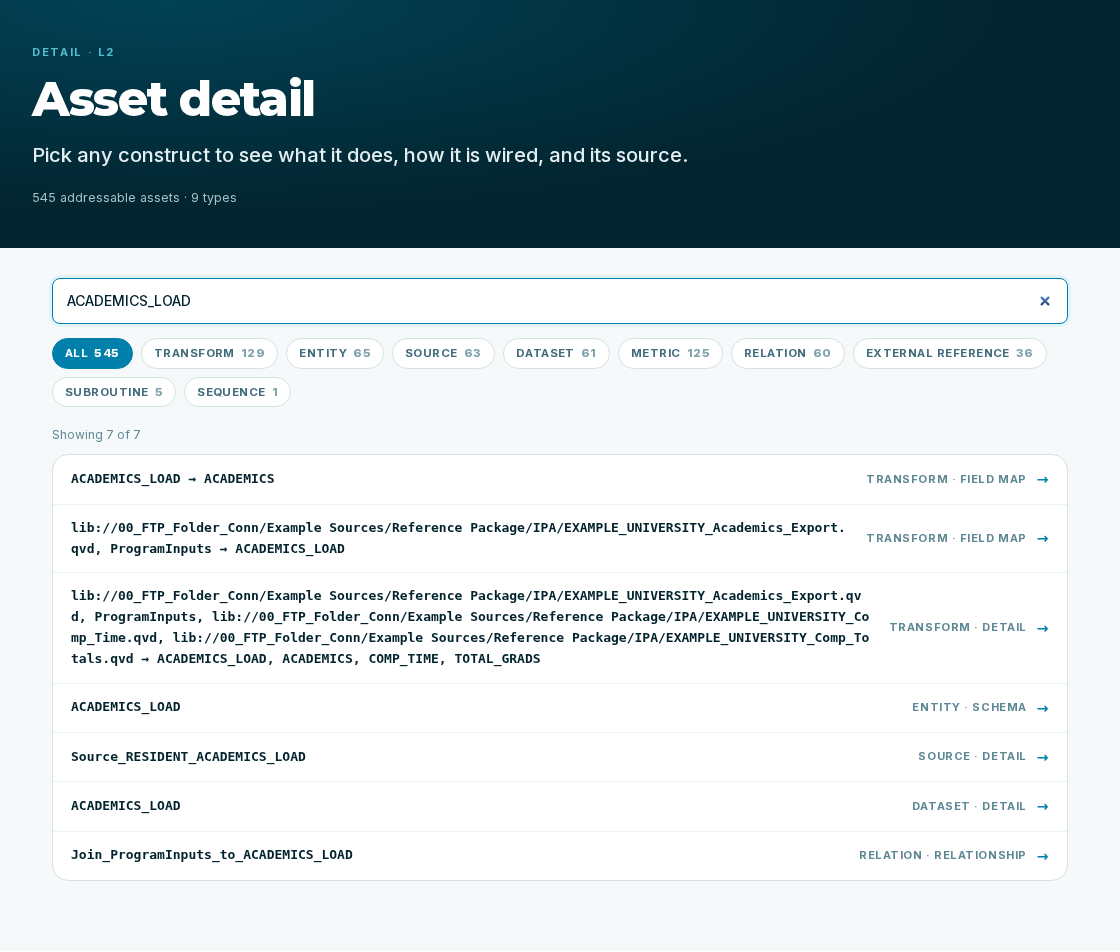
Find an asset
The Asset detail index provides a Find an asset search field and type filters. Select a type such as Transform, Entity, Source, Dataset, Metric, Relation, External reference, Subroutine, Sequence, or Test, according to the available inventory. All returns to the unfiltered type selection.
- Choose the relevant type or enter an identifying search term.
- Read Showing … of … to see whether the list is complete for that query.
- If the view asks you to refine the search, narrow the name or type.
- Select the row for the intended asset.
Rows show the asset name, type, and expected Spotlight. A truncated list is not a complete inventory: an asset absent from the visible rows may still match a more specific search. A no-match message describes the active search and filter.
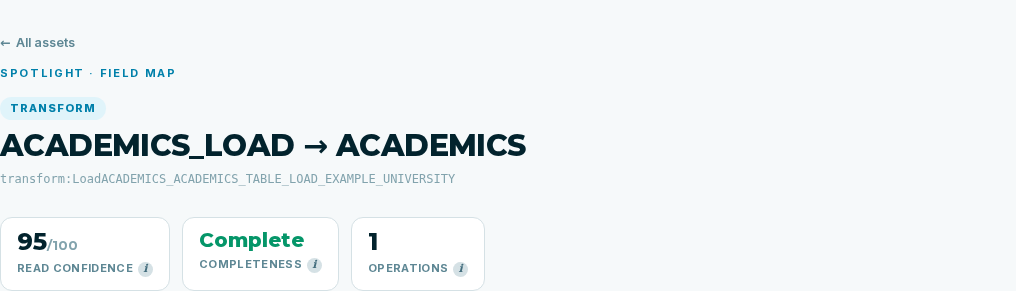
Asset identity and metrics
The header shows the asset type, name, technical reference, and Spotlight type. Use the reference to distinguish similarly named objects. All assets returns to the index so that you can change the search.
Up to three metric cards appear when their values are available:
| Card | Meaning | Reading action |
|---|---|---|
| Read confidence | The confidence recorded for this individual asset, displayed out of 100 | Use the information badge and distinguish it from an estate average |
| Completeness | Complete (fully detailed), partial, or stub representation | Identify which part of the behavior remains to investigate |
| Operations, Fields, Steps, or Call sites | The recorded size, labeled by its unit | Sizes of different kinds are not directly comparable |
An absent metric is not displayed as a zero measurement. Read the accompanying gaps. Some asset types have their own confidence while being outside the L0 aggregate population; the header notes that distinction where relevant.
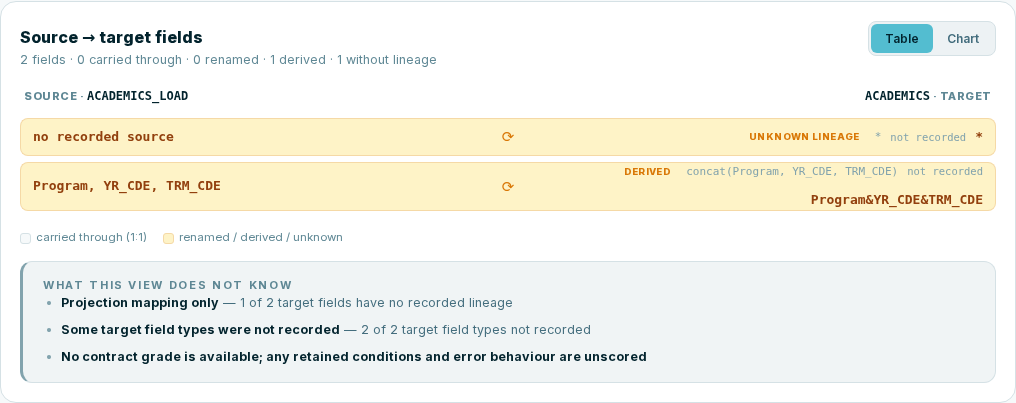
Spotlight: the question this asset answers
The main panel adapts to the available asset information. It is not a set of tabs you must select manually.
| Spotlight | Main question |
|---|---|
| Field map | What does this transformation do to its fields? |
| Schema | What fields and types make up this structure? |
| Flow | What steps are recorded for this routine or orchestration? |
| Dependency | Who calls this dependency, and with which interface? |
| Formula | How is this measure calculated? |
| Relationship | How do these structures join? |
| Detail | What information is recorded without a specialized visualization? |
Read L2 spotlights for every widget, column, control, and missing value. A generic Detail panel is a valid recorded view; it does not imply that every asset must have a field map or flow.
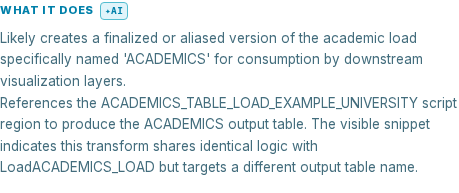
Dossier: What it does
The dossier explains the purpose and description recorded for the asset. Read the provenance marker attached to that explanation. A description may be available even when the reason for the asset’s existence was not recorded.
Use the explanation to orient the source review. For a currency transformation, distinguish “converts amounts” from the exact rate date, rounding, and fallback behavior that your assessment needs to establish.
Dossier: Error handling
Where recorded, this section describes error behavior or its component properties. Inspect it alongside the flow and source, especially for application operations where a failure changes the next step or returned result.
An absent section means that this dossier does not supply the information; it is not evidence that the program cannot fail or contains no error handling.

Dossier: Lineage
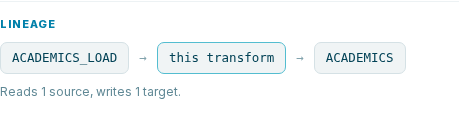
The lineage strip places the current asset between its recorded inputs and outputs and gives source and target counts. Use it to situate the asset in the surrounding processing.
Asset-level lineage and a field mapping answer different questions. A named input establishes the surrounding dependency; Field map examines the recorded origin and expression of individual output fields.
Dossier: Platform detail and Notes
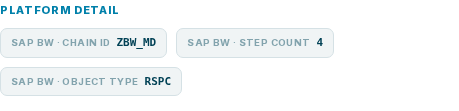
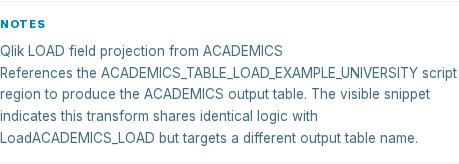
Platform detail shows source-specific properties when available, helping you connect the analysis object to its native context. Notes holds recorded semantic observations. Read them with the chosen platform guide and original source conventions.
These sections depend on what was recorded for the asset. Their absence does not provide a default value for the missing properties.
Dossier: Related assets and ambiguous references
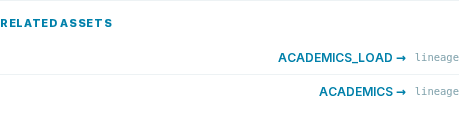
Related assets lists neighboring objects and their relationship to the selection. Follow a navigable entry to continue the investigation. A named but unlinked entry has no resolved destination in the available result.
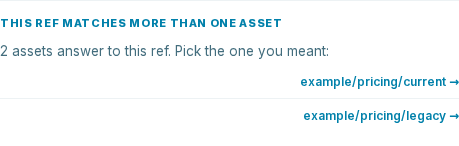
If This ref matches more than one asset appears, select the intended alternative by its qualified reference, then inspect its source context. Do not assume that identical display names refer to the same program or structure.
The expandable All recorded TIL fields section exposes the recorded detail for deeper inspection. Here, TIL means the analysis’s recorded description of an asset. You can use it when a value is not summarized by the visual panels; the everyday workflow remains the Spotlight, dossier, and source.

Source panel
Read the file identity and, where shown, Shown from … before interpreting the code. That note identifies cases where the displayed evidence belongs to a related owner rather than the selected asset itself.
When source lines are available, the panel shows line numbers and highlights the range associated with the asset. Use Expand before and Expand after to extend the current window. Read adjacent conditions and context before treating a single expression as the complete behavior.
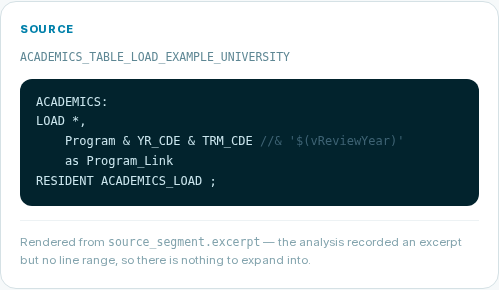
An excerpt without a source line range can be shown as text but cannot be expanded into surrounding lines. If the entire file is the recorded range, the absence of selective highlighting does not mean no source was associated.
| Source message | What to do |
|---|---|
| No source evidence is available | Find the required artifact or ask the source owner |
| No source file is recorded for this construct | Use the dossier and identify the missing artifact |
| No line range is available for this source | No source window is shown; obtain the missing source context |
| Recorded an excerpt but no line range | Read the displayed excerpt; surrounding-line expansion is unavailable |
| The recorded source file could not be found | Compare the current input inventory with the analysis |
| The source changed since this analysis | Resolve source/result currency before relying on the displayed relationship |
| Retry expand before / Retry expand after | Retry the failed read; retain the last successful window as context |
Gaps and missing information
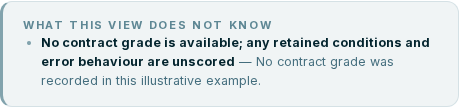
Gap messages explain unavailable measurements, source, classifications, or relationships. Read them in the panel they qualify. An unrecorded argument list, for example, differs from a recorded call with zero arguments.
For each relevant gap, choose the next action: obtain missing source, inspect a related asset, resolve an outdated result, or ask a specialist about business meaning.
Verify the investigation
Record the selected reference, the source or recorded evidence that answers the question, and any behavior still unresolved. For a conversion rule, the result should identify the expression or routine and the context that selects its rate. For an external call, it should identify the caller, interface, and owner of the unavailable implementation.
If an asset no longer exists in the analysis, return to the index and search the current inventory. If the page reports analysis still in progress, unreadable results, or an unavailable detail snapshot, resolve that state before treating the missing panel as a finding about the source system.